In paid advertising, purchase data determines almost the entire campaign performance. If you cannot measure where orders originate, budgets are easily misallocated, and algorithms learn skewed behaviors. How to track purchases on Facebook Ads allows advertisers to see every touchpoint in the customer’s decision-making process, from clicking the ad to completing payment. When the event system is set up correctly, Facebook will prioritize delivery to user groups with a higher purchase probability instead of just optimizing for clicks. In the long run, how to track purchases on Facebook Ads helps reduce cost per order, increase stability when scaling, and limit the risk of optimizing based on incomplete data.
Accurate Facebook Ads conversion measurement in 2026
Instead of relying solely on surface-level metrics like clicks, businesses need to focus on actual conversion signals from the website. A complete measurement system not only helps you identify the source of orders but also provides high-quality input data for machine learning to distribute ads to the right potential customers, thereby minimizing budget waste.
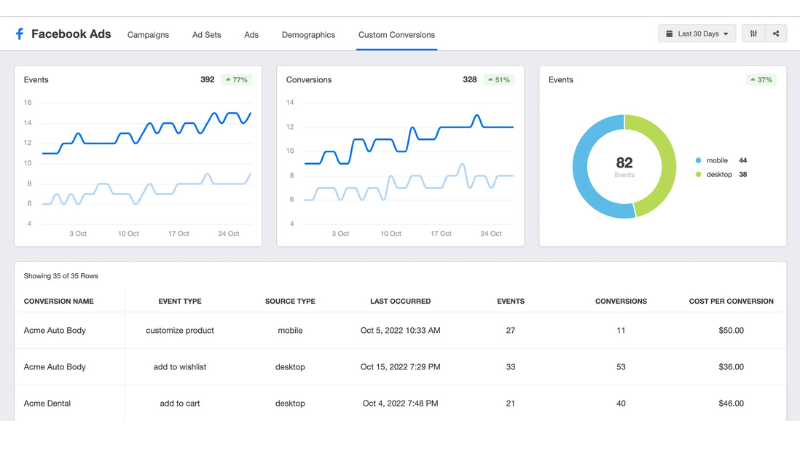
Step 1: Set up Meta Pixel and synchronize purchase events
Meta Pixel acts as the “eye” that records every user behavior after clicking on an ad. The standard installation process includes technical operations ranging from source code to event verification.
- Getting and installing Pixel code: Access “Events Manager” to copy the base Pixel code. For platforms like Shopify or WordPress, you should prioritize using existing integrations to ensure the code is placed correctly in the tag of the website without deep code intervention.
- Configuring Purchase events: This is the most important step. You need to set up the “Purchase” standard event to trigger immediately when a customer accesses the order confirmation page. Ensure full transmission of parameters like order value and currency for the system to calculate ROAS accurately.
- Testing and Verification: Use the Meta Pixel Helper extension on Chrome for real-world testing. The system must show a green signal for both the base Pixel code and the Purchase event when you perform a test order.
Step 2: Manage and analyze purchase data
Once data is collected, organizing scientific reporting tables will help you make timely campaign adjustment decisions based on actual performance metrics.
- Customizing reporting columns: In the Ads Manager interface, change the view from the default “Performance” to “Custom columns.” Here, you need to bring key metrics to the top, including: Purchases, Conversion Value, and Cost Per Purchase (CPP).
- Performance analysis: Tracking these metrics at the “Ad set” and “Ad” levels will help you accurately identify which content, creative, or audience segment is bringing in actual profit, rather than relying on intuition.
Step 3: Advanced tracking optimization
For complex website systems or when Pixel data is lost due to browsers blocking cookies, advanced options will help fill the information gap.
- Detailed action analysis: Use the “Breakdown” feature in the “Action” section to cross-check between automatically reported data and actually recorded data. This helps you understand data latency and adjust reporting expectations in large-scale campaigns.
- Custom conversions: If installing event codes encounters technical difficulties, you can set up rules based on URLs.
For example, set up the system to record a conversion every time a user accesses a link containing /order-confirmation. This is an effective backup solution to ensure no data is missed.
Fixing common issues in conversion tracking
Even with a correct setup, the measurement system can still generate errors due to source code conflicts or browser-side changes. Early identification and resolution of technical incidents ensure the data flowing into Ads Manager remains truthful, supporting advertisers in making accurate budget optimization decisions
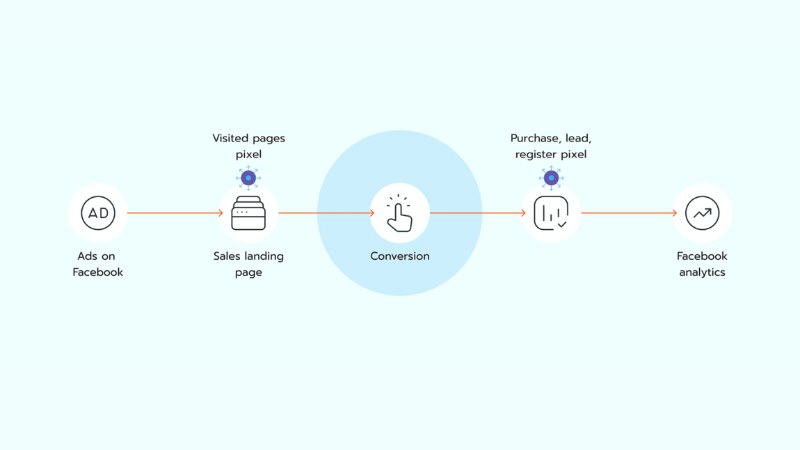
Handling signal loss and event trigger errors
Unstable Pixel signals are the leading cause of empty ad reports or reports that do not reflect actual orders.
- Check base Pixel settings: Ensure the Pixel code is placed correctly within the tag of the website. A common mistake is placing the code too low or it being blocked by extensions like AdBlock on the user’s browser. Use the Facebook Pixel Helper on Chrome to confirm the code’s presence immediately upon page load.
- Verify event trigger location: If the Pixel is working but not recording purchases, you need to check the “Thank you” page. The purchase event code must be placed exactly on this final page to avoid misrecording when customers have only added products to the cart.
- Check partner integrations: For Shopify, errors often come from plugins not being updated or incorrect ID configuration. Carefully re-check integration settings to ensure the connection between the website and Meta is uninterrupted.
Optimizing accuracy and dealing with privacy restrictions
In an era of high data privacy, event duplication or data loss on iOS is are challenge requiring more advanced technical solutions.
Due to iOS privacy updates, you need to set up Aggregated Event Measurement and prioritize the purchase event to the highest position. Also, note that conversion data can have a latency of up to 24 hours to fully display in Ads Manager. Therefore, campaign performance evaluation should be based on data from at least the previous 3-7 days.
When businesses simultaneously use Browser Pixel and Conversions API, an order can be counted twice. You must configure deduplication features through Event IDs to ensure Meta identifies these two signals as belonging to the same transaction.
A purchase event missing parameters like product ID, value, and currency will cause ROAS reports to be skewed. Ensure these variables are transmitted accurately from the order management system to Meta.
Frequently Asked Questions
AEM is Meta’s protocol for processing data from iOS users. In 2026, you are limited to a maximum of 8 conversion events per domain and must rank them by priority. If the “Purchase” event is not set to the highest priority, Meta’s algorithm will not receive enough data from the Apple user group to optimize potential customer segments, leading to decreased campaign performance even if the Pixel still records raw data.
This error stems from parameter transmission within the event code snippet. To record revenue, the Purchase event code must contain dynamic variables like value and currency. If you only install the event to trigger on “Thank you” page load without configuring it to pull data from the website’s data layer, Facebook will only count the number of purchases without being able to aggregate order values, resulting in the ROAS column failing to display figures.


